ヘルプ
設定マニュアル・トラブルシューティング
※「Grandstream Wave Lite」アプリは終了しました。現在のGrandstream Wave は、違うアプリですのでご注意願います。 |
||||||||||||||||||||||||


Grandstream Wave Lite 設定
iPhone 版
App Store にて、「Grandstream Wave Lite」というソフトを検索して導入します。
本Grandstream Wave Lite というソフトは無料です。
その後、VoiP+の電話設定をご案内いたします。
本マニュアルでは「Grandstream Wave Lite」を「Wave Lite」と表記いたします。
※アプリ名がGS WaveからWave Liteへ変更されました。一部画像にGS Waveとありますが、Wave Liteと読み替えてください。
1.Wave Lite インストール
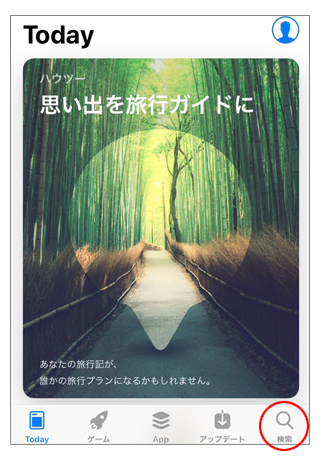
1-1. 「App Store」をタップします。

1-2. 右下にある、「検索」ボタンをタップしてください。
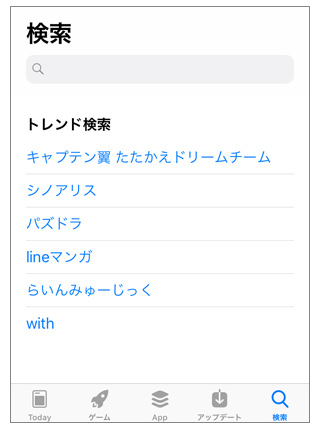
1-3. 検索画面が表示されます。
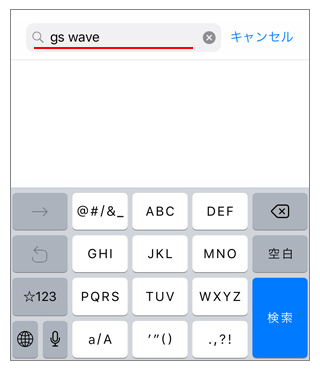
1-4. 検索の入力キーワードは、「gs wave」とローマ字で入力します。
この時のスペースは空白を入力してください。
入力後、「検索」ボタンをタップしてください。
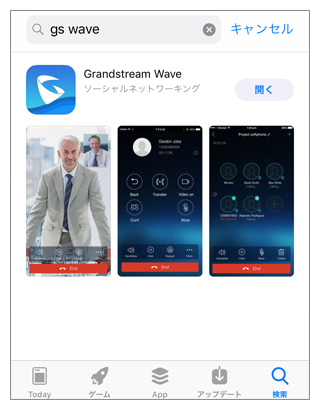
1-5. 画面の様に「Grandstream Wave Lite 」と表示されますので、このソフトをiPhone に導入します。雲の↓矢印のマークをタップしてください。
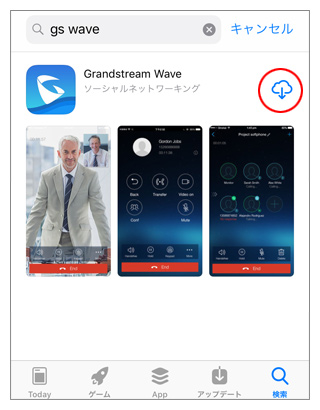
1-6. 雲のマークがグルグル回る表示に変更されます。

「開く」というボタンが表示されましたら、導入は完了です。
2.Wave Lite の設定
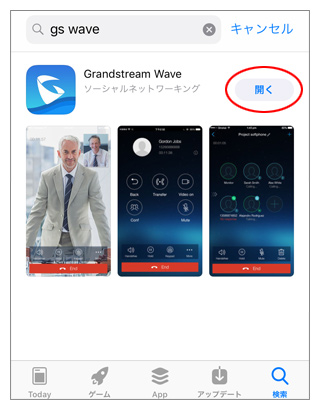
2-1. では、「開く」というボタンをタップして、Wave Lite を起動してVoiP+の設定を行います。
Wave Lite をタップして起動しましょう。
常時、着信待ちにするには、Wave Lite を起動したままにしてくださいね。
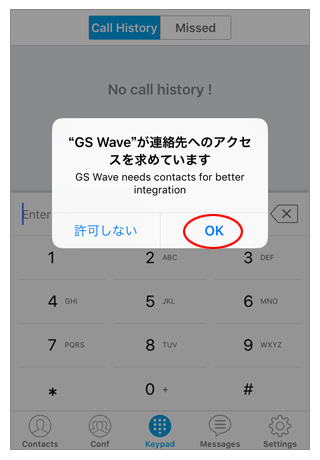
2-2. 「”Wave Lite”が連絡先へのアクセスを求めています」と表示されますので、「OK」をタップして連絡先へのアクセスを許可してください。
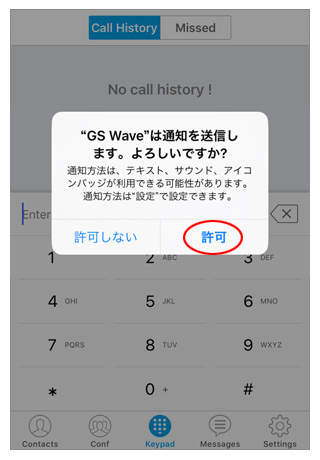
2-3. 「”Wave Lite”は通知を送信します。よろしいですか?」と表示されますので、「許可」をタップしましょう。
2-4. これで、Wave Lite が起動されました。
これから設定を行います。すべて英語ですが、このマニュアルの通りにやれば大丈夫です。
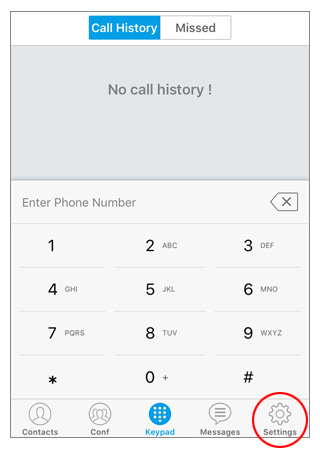
では、一番下の右端にある、ギヤーのマーク「Settings」をタップします。
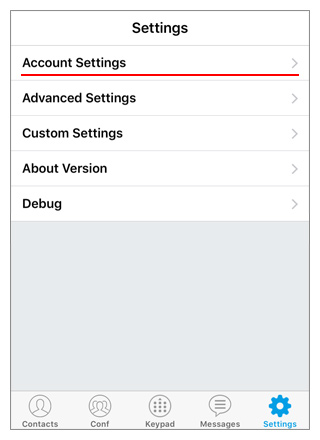
2-5. この一番上の行にある、「Account Settings」をタップします。
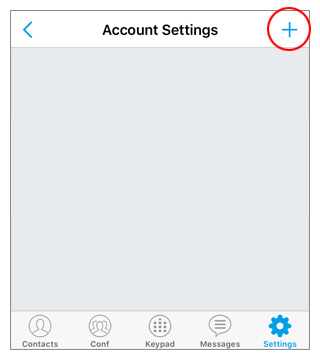
2-6. Account Settings の詳細が表示されます。 でも何も設定していませんので、下の方は空白ですね。 そこで、右上にある「+」プラスをタップします。
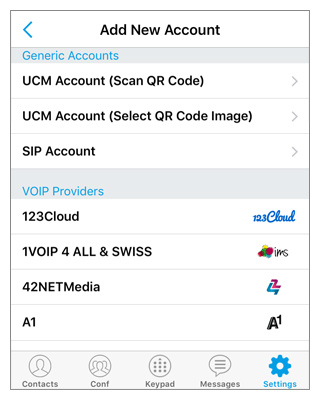
2-7. 「Add New Account」画面が表示されます。
2-8. では、VoiP+の登録メールに添付されているQR コードを読み込みますので、
[VoiP+ 登録完了] サービスのご案内 というメールを開いてください。
※パソコンで登録された方は、メールをiPhoneメールに転送してください。
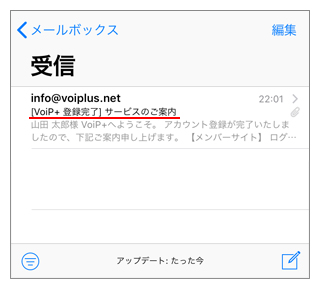
2-9. メールに添付されているQRコードをiPhone に保存します。
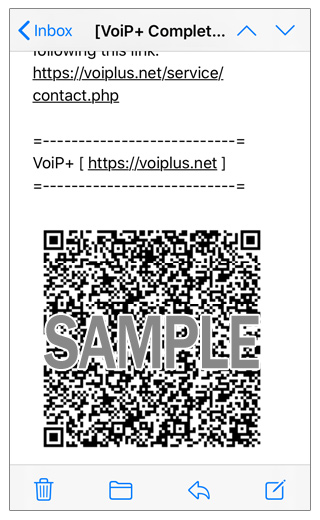
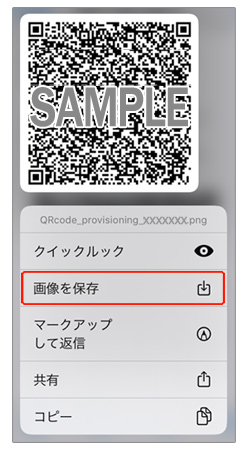
QR コードを長押ししして、「画像を保存」をタップすると写真フォルダへ保存されます。
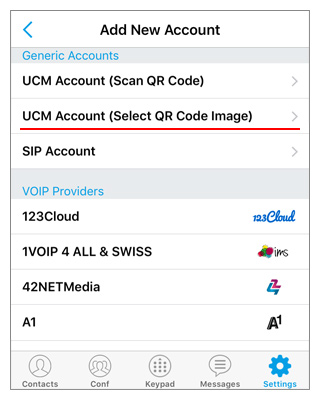
2-10. Wave Lite の画面に戻り、2行目にある「UCM Account (Select QR Code Image)」をタップしてください。
2-11. 保存したQR コードの画像を選んで表示、「選択」をタップしてください。
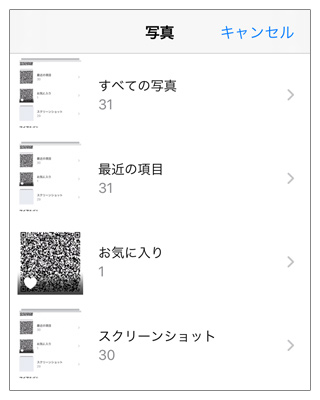
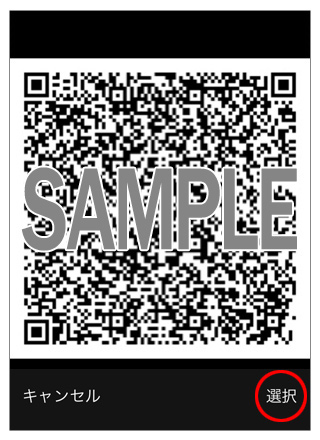
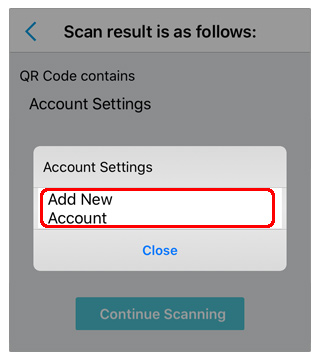
2-12. QRコードが正しく読み込まれると、「Add New Account」と表示されますので、タップしてください。
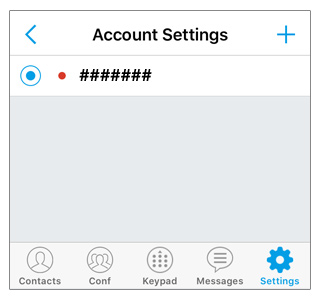
2-13. 正常に登録されていれば、アカウントが表示されます。 このアカウントが、あなたの内線番号です。
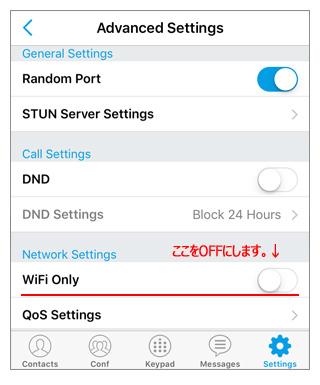
2-14. 画面右下の「Settings」をタップ、「Advanced Settings」をタップして、WiFi接続以外の3G,4G(LTE),5G でご利用される場合は、 「WiFi Only」をOFFにしてください。
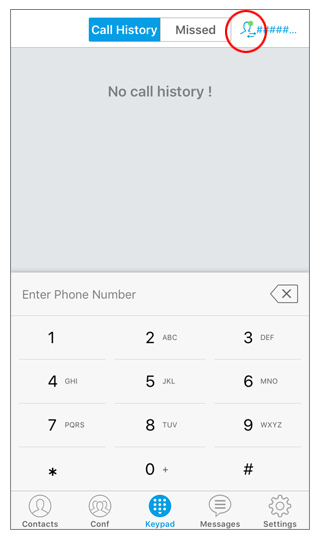
2-15. 右上の人間のマークに緑色が点灯していれば、接続成功です。
3.ご案内
日本国内の通話は、市外局番から入力すればかけられます。 国際電話は、002+国番号+ゼロを除いた市外局番+電話番号でかけられます。
iPhone5s などはネットワークをWiFi に切り替えた時などに切断されることがあります。
Wave Lite の再起動が必要になります。VoiP+Web サイトでメンバーログイン後、「レジストアラート」をオンにすれば、切断時にメールで通知してくれます。
デポジット金額がゼロ円になれば自動的に停止されて、それ以上お金がかかることはありません。安心してご利用頂けます。
他国の着信番号はご要望数に応じて、設置いたします。リクエストお待ちしております。
VoiP+をご利用頂き、誠にありがとうございます。
|
|||||